1 October 2026 · 5 min read
Your pins are landing in the Suggested For You feed - but users decide in under 2 seconds whether to stop or scroll. Here's how to win that split-second moment every time.
Here's something that might sting a little: Pinterest is probably already showing your pins to fresh audiences in the "Suggested For You" feed. That's the good news. The bad news? Most users make a stop-or-scroll decision in under two seconds. If your pin thumbnail doesn't pass that lightning-fast gut check, it doesn't matter how brilliant the blog post behind it is.
The Suggested For You feed is one of Pinterest's most powerful discovery surfaces. Unlike your home feed (which reflects your existing follows), this feed serves pins to people who have never encountered your content before. It's Pinterest's way of matchmaking - connecting your pin with someone who might love it based on their interests and search behavior. But that match only works if your pin earns the click.
So what exactly does the 2-second test look like? And if your pins are failing it, what do you do? Let's break it down with five concrete fixes you can start using today - plus real talk about Pinterest pin design templates, aesthetic choices, and what actually makes viral Pinterest pin templates work.
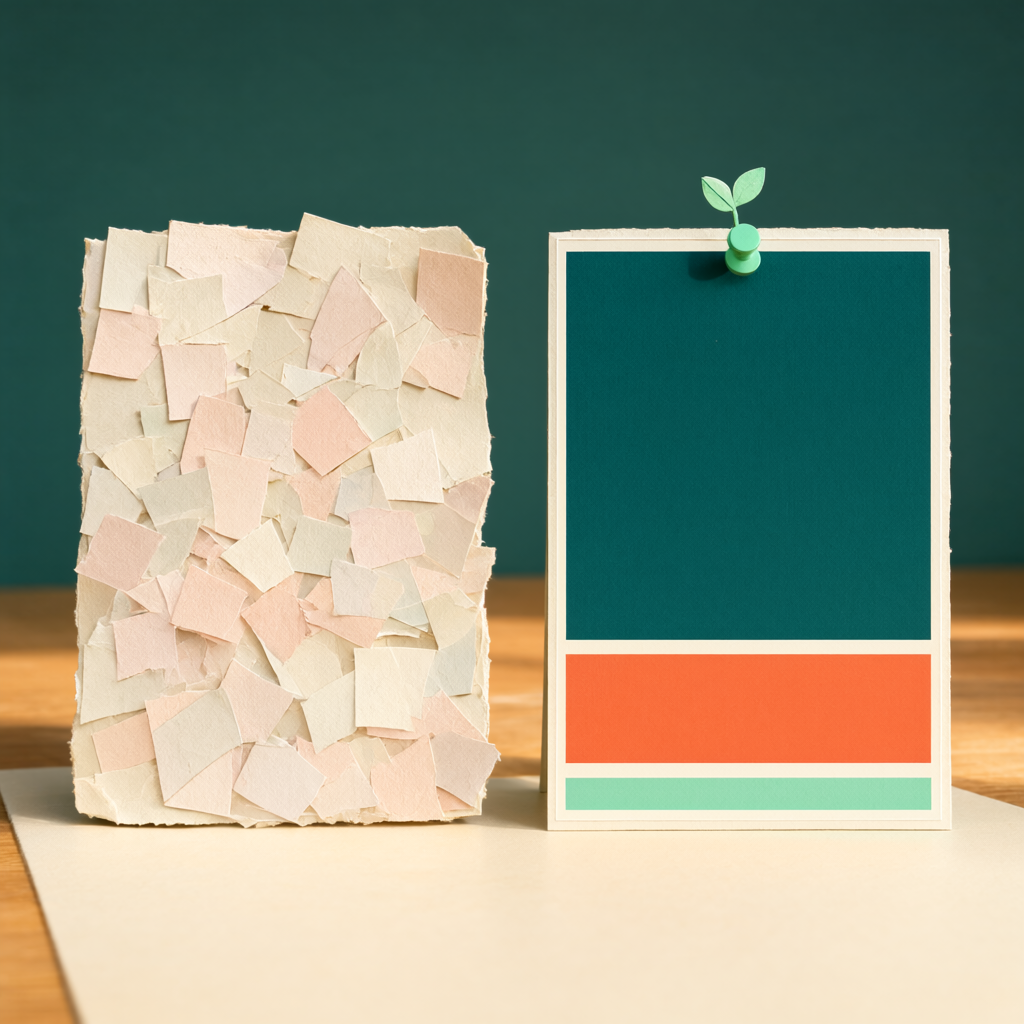
When your pin appears in someone's Suggested For You feed, it's competing with 10-15 other pins visible on screen at the same time. The user's eyes are flicking across a dense mosaic of images. In roughly two seconds, their brain processes:
Color contrast: Does the pin stand out from its neighbors?
Text clarity: Can they read the headline without tapping?
Relevance signal: Does this look like something they care about?
Quality cue: Does this look professional enough to trust?
If any of those checks fail, the thumb keeps scrolling. No saves, no clicks, no traffic. Your pin essentially becomes invisible despite being served to the perfect audience. Let's fix that.
I know - those muted, dusty-rose-and-sage Pinterest pin ideas aesthetic boards are gorgeous. And they absolutely have a place. But when your pin lands in a feed surrounded by other content, low-contrast designs blend into the background like camouflage. The fix isn't to go neon. It's to pair your aesthetic palette with at least one high-contrast element: a bold headline bar, a dark text overlay, or a crisp white border. Think of it as giving your pin an "anchor" that the eye can grab onto.
This is the single most common mistake I see. Bloggers design pins at full size on their laptops, where every word looks perfect - then forget that 85% of Pinterest users are on mobile. Pull out your phone right now and look at your latest pin in the feed. Can you read the headline without squinting or tapping? If not, increase your font size to at least 60-70pt (on a 1000×1500 canvas), reduce your word count to 6-10 words max, and use a clean sans-serif or bold serif font. No script fonts for headlines. Ever. I said what I said.
Want to do this without the manual work?
PinFreshly converts your blog posts into Pinterest pin images automatically. Free to try.
The best viral Pinterest pin templates share one thing in common: a clear visual hierarchy. Your eye knows exactly where to go first, second, and third. Typically that's: hero image → headline text → supporting detail or brand name. When everything on the pin is the same size, weight, and importance, nothing stands out. Pick one element to dominate and let everything else play a supporting role.
Pins with specific numbers in the headline consistently outperform vague ones. "12 Freezer Meal Prep Ideas Under $50" beats "Meal Prep Ideas" every single time. In the Suggested For You feed, specificity acts as a relevance signal - it tells the scroller exactly what they'll get if they tap. When you're designing Pinterest pin design templates for your blog posts, build the number or benefit into the most prominent text on the pin. Make it impossible to miss.
Here's a truth that changed my entire Pinterest strategy: you don't know which pin design will win until you test it. One blog post should have at least 3-5 different pin images. Vary the headline angle, the image, the color scheme, and the layout. One might feature a flat-lay photo with bold text; another might be a simple text-based graphic. The Suggested For You algorithm will naturally push the version that gets the most engagement - but it can only do that if you give it options.
This is where creating pins at scale stops being a "nice to have" and becomes essential. Designing five unique pins per post manually? That's hours of work. Tools like PinFreshly can generate pin images directly from your blog posts, which means you can test more variations without burning your entire afternoon in Canva.
Pull up your last 10 published pins on your phone (not your laptop - mobile view matters most). For each pin, ask yourself:
Can I read the headline in under 2 seconds without tapping?
Does the pin have one clear focal point, not three competing elements?
Does the headline include a specific number, benefit, or curiosity hook?
Would I stop scrolling for this if I didn't know it was mine?
Be brutally honest. If more than half your pins fail two or more of these checks, it's time to revisit your templates.
A beautifully designed pin that no one stops for is just a pretty file sitting on your hard drive. The Suggested For You feed is handing you fresh eyeballs on a silver platter - but only if your thumbnail earns the pause. Start with contrast, clarity, and specificity. Test multiple designs per post. And remember: every pin is a tiny billboard competing for attention in a fast-moving feed. Make those two seconds count, and the clicks, saves, and traffic will follow.
Share this post
Enjoyed this? Get more like it.
Weekly Pinterest tips for bloggers. Unsubscribe anytime.
Check your email to confirm ✓
Something went wrong. Please try again.
Still creating pins manually?
Every blog post you publish without pins is traffic left on the table.
PinFreshly turns your RSS feed into branded pin images in seconds — free to start, no card required.

24 October 2026
Your pins get tapped, yet nobody reaches your blog. The likely culprit: you've already given readers everything they came for. Here's the fix.
19 October 2026
Your styled room photos might be invisible to Pinterest's matching tools. Two well-written sentences on every pin could change that.
17 October 2026
Your December posts aren't done working. These 5 steps turn holiday content into new year reset pins in one quiet afternoon between Christmas and New Year.