22 June 2026 · 5 min read
Every blogger uses the same three pin templates - and Pinterest users scroll right past them. Here are the design swaps that actually stop thumbs.
You downloaded the Canva template pack. You picked a nice serif font. You layered in a stock photo, added your blog title in white text, and called it a day. Sound familiar? You're not alone - and that's exactly the problem.
Pinterest pin templates for bloggers have become so standardized that the average home feed looks like a wall of identical tiles. Same muted color palettes, same text placement, same vibe. When everything blends together, nothing gets clicked. And when nothing gets clicked, your brilliant blog post about meal prep or nursery organization just… sits there.
The good news? You don't need a graphic design degree to stand out. You need a handful of intentional design swaps that break the template mold without burning hours in Canva. Let's get into the five that actually move the needle.
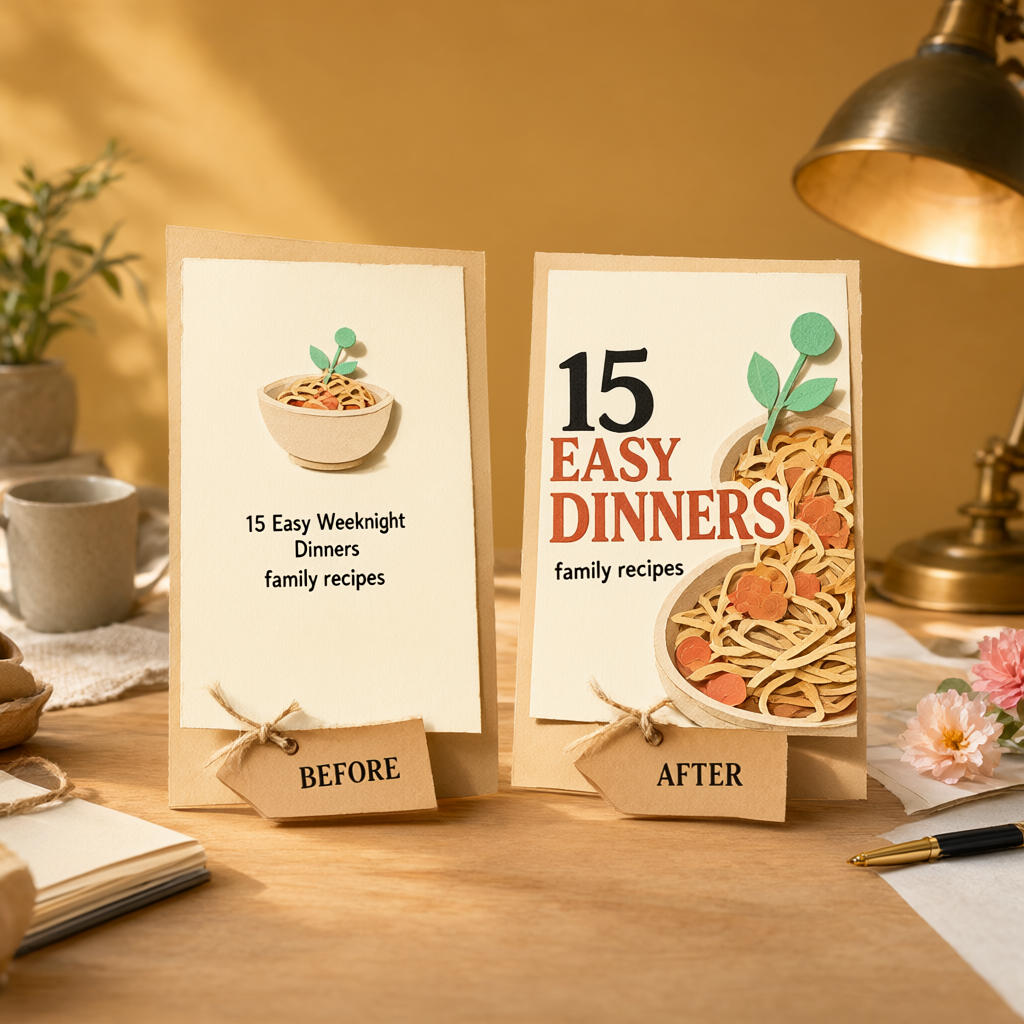
Here's what happened: a few years ago, Pinterest pin design templates exploded in popularity. Creators started selling packs of 20, 50, even 100 templates - and thousands of bloggers bought the exact same ones. The result? A sea of pins that look like they were made by the same person.
Pinterest's algorithm rewards engagement. If your pin looks like everything else on someone's feed, their brain literally skips over it. Neuroscience backs this up - our eyes are drawn to pattern interruptions, not pattern repetitions. So if you want viral Pinterest pin templates, you need designs that break the patterns everyone else is following.
The number-one layout in Pinterest pin templates for bloggers? A photo background with centered text stacked in the middle. It's clean, sure. It's also invisible.
Try pushing your headline to the left third or top quarter of the pin. Use a color block on one side and leave the other side as a photo or white space. Asymmetrical layouts create visual tension - your eye doesn't know where to land first, so it stays on the pin longer. That extra half-second of attention is what earns the click.
Wide-angle lifestyle photos look gorgeous on a blog header, but they turn to mush at pin size. On a phone screen, that beautifully styled flat lay becomes an unreadable blur of tiny objects.
Swap in tight, close-up images with strong contrast. A hand holding a single cookie against a bright background. A close-up of a planner page with bold handwriting. These images read clearly at thumbnail size, which is where 85% of Pinterest browsing happens. If you can't tell what the photo is at the size of a postage stamp, it's the wrong photo for a pin.
Want to do this without the manual work?
PinFreshly converts your blog posts into Pinterest pin images automatically. Free to try.
Brand consistency matters on your website. On Pinterest, it can make you wallpaper. When every pin in your profile uses the same sage green and cream, you blend into the feed rather than popping out of it.
Pick one color per pin that feels slightly unexpected - a saturated coral, a bright chartreuse, or even classic black on a feed full of pastels. Use it for one element: a text highlight, a border, or a shape behind your headline. That single pop of contrast is what makes someone's thumb stop mid-scroll. You can still look "you" without looking like the same pin on repeat.
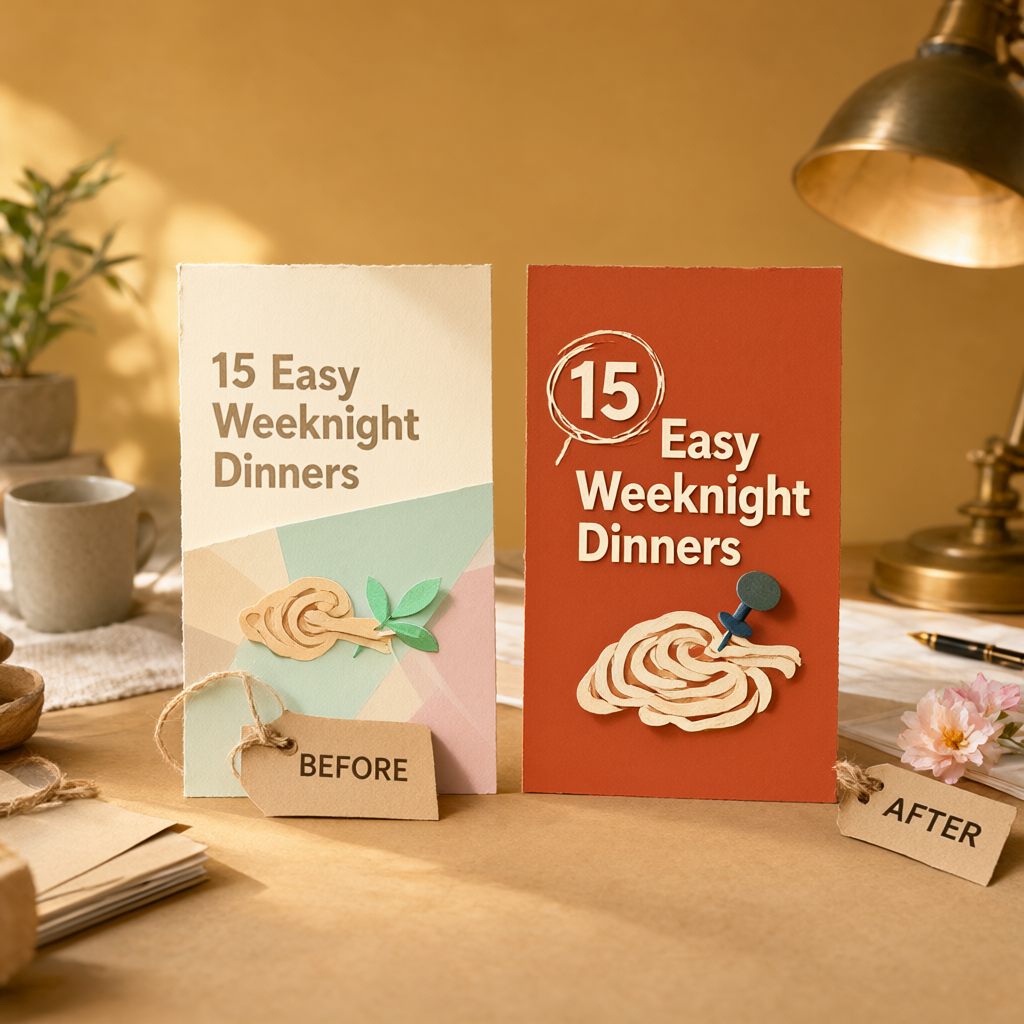
Most Pinterest pin design templates use two font sizes: medium for the subtitle, slightly larger for the headline. The difference is so subtle your eye treats them as the same weight. Nothing stands out.
Go dramatic. Make your main headline 3-4x bigger than any supporting text. If your headline is "15-Minute Dinners," those words should practically shout. The subtext ("easy weeknight meals for busy families") can be tiny - almost a whisper. This contrast creates a clear reading path: big text hooks them, small text gives context, and your blog URL seals the deal. Aim for a ratio where someone six feet from their screen could still read your headline.
This is the secret behind viral Pinterest pin templates that actually earn saves and clicks: one element that doesn't "belong." A hand-drawn arrow pointing to your headline. A torn-paper edge instead of a clean border. A small numbered circle that makes the pin look like part of a series (even if it isn't).
These micro-elements signal to the scroller that this pin was crafted, not generated from a template pack. They add personality, and personality is what earns trust - and trust is what earns clicks to your blog.
Here's the thing nobody talks about: the bloggers getting the most Pinterest traffic aren't spending hours on pin design. They've figured out which design choices actually matter and they skip the rest. The five swaps above take minutes, not hours, once you internalize them.
And if creating fresh pin images for every blog post still feels like a time sink, tools like PinFreshly can generate ready-to-pin images from your blog posts automatically - so you can spend your creative energy on the strategic language tweaks that make each pin unmissable instead of starting from scratch every time.
Your content deserves to be seen. The recipe, the tutorial, the guide you poured hours into - it's too good to disappear behind a pin that looks like everyone else's. Make the swaps. Break the pattern. And watch what happens when your pins finally stop blending in.
Share this post
Enjoyed this? Get more like it.
Weekly Pinterest tips for bloggers. Unsubscribe anytime.
Check your email to confirm ✓
Something went wrong. Please try again.
Still creating pins manually?
Every blog post you publish without pins is traffic left on the table.
PinFreshly turns your RSS feed into branded pin images in seconds — free to start, no card required.

24 October 2026
Your pins get tapped, yet nobody reaches your blog. The likely culprit: you've already given readers everything they came for. Here's the fix.
19 October 2026
Your styled room photos might be invisible to Pinterest's matching tools. Two well-written sentences on every pin could change that.
17 October 2026
Your December posts aren't done working. These 5 steps turn holiday content into new year reset pins in one quiet afternoon between Christmas and New Year.